A guide to Metisdo.
Metisdo is a local-first to-do app built around Getting Things Done (GTD). Capture tasks, clarify the next Action, organize Projects, and review your commitments. Link Notes to the work they support.
Describes the current development build. Public installers and pricing have not been announced. Screenshots use a sample Workspace.
Getting started
Create a Workspace
Open Metisdo and choose Create Workspace. Give it a name and choose a writable folder. You can return to an existing Workspace from the Welcome screen or switch Workspaces from the selector at the top of the sidebar.
The folder holds your content, configuration, and revision history. Keep the whole folder together when moving it. Preferences such as theme and the global capture shortcut belong to this device.
Capture an Action
Click the capture field in the header, or press c when you’re not typing. Try “Outline the first chapter”. Keep the destination set to Inbox, then choose Add action. This creates an Action in Inbox. You can add its Project and date later.
The capture form also accepts a description, due date, priority, Project, context, and tags. Review any recognized dates or properties before saving. On desktop, the global capture window works while Metisdo is running; its default shortcut is Ctrl Shift Space.
Organize the Inbox
Select an Action to open its Inspector. Add a Project and edit its properties. The More actions menu includes Change type or status…, Wait for…, Schedule…, and Someday.
For work that needs several steps, create a Project such as “Publish a field guide”, then attach “Outline the first chapter” to it. Write background material in a Note and link it to the Project.
The system-wide capture window can also create unclarified Inputs. For an Input, choose More actions → Clarify… to convert it or split it into several items. Header capture creates Actions instead.
Choose what to do next
Open Available Now to see Actions you can start. Select an Action to open its Inspector, where you can edit details, start it, or mark it complete. Use Show why to inspect excluded Actions, including those waiting on a dependency.
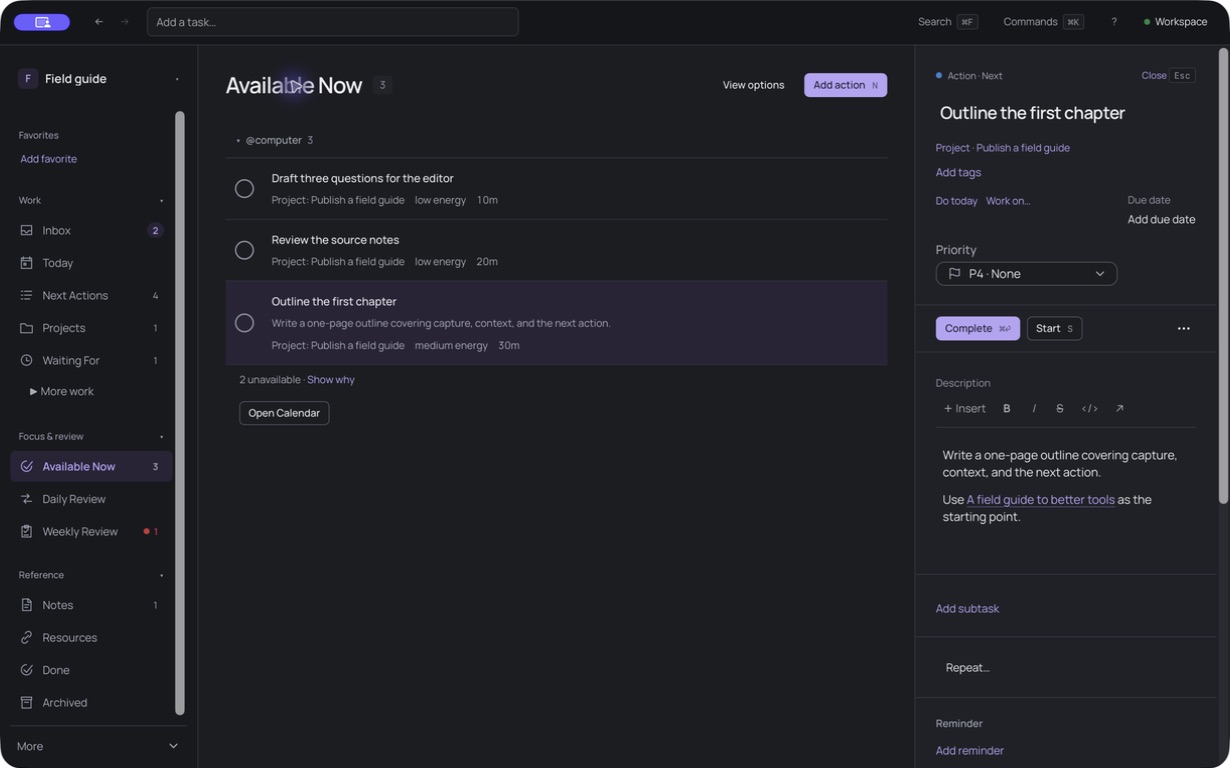
Come back for a review
Use Daily Review to check the Inbox, scheduled work, and today’s choices. Use Weekly Review to work through your lists and Projects. Choose Mark reviewed after reviewing a Project; simply opening it does not update its review date.
Actions & scheduling
An Action is an executable step. Select one in a list to edit its title, rich-text description, Project, tags, and properties in the Inspector.
- State & completion
- Start or pause an Action, complete it, move it to Waiting For, or archive it. Completed items appear in Done; archived items can be restored from Archived.
- Subtasks
- Add smaller steps, nest them, reorder them, and complete them individually. Recurring tasks can reset completed subtasks for the next occurrence; control that behavior in Preferences.
- Due date
- A deadline. Today and Upcoming show dated work. Today includes overdue Actions and provides a preview before rescheduling them in bulk.
- Work day
- The day you intend to work on an Action. Use Do today or the work-day control without changing its deadline.
- Defer until
- The earliest date an Action should become available. This is separate from its due date and planned work day.
- Context, energy & duration
- Record where or how you can do the work, its energy requirement, and estimated minutes. Available Now supports constraints on these properties. Use View options and saved-view configuration to adjust the list.
- Priority & dependencies
- Use priorities P1–P3, or P4 for no priority. A dependency records work that must happen first; blocked Actions are excluded from Available Now.
- Repeat & reminders
- Use Repeat to configure recurring work and Add reminder to set a reminder. Check the selected rule and dates before saving.
- Calendar
- Track scheduled commitments separately from your pool of next Actions. Today’s scheduled commitments also appear in Available Now.
- Waiting For & Someday/Maybe
- Keep delegated commitments and possibilities in their own lists. Revisit them in a review and move them into active work when appropriate.
Lists support selection, grouping, filtering, and item actions. Right-click an item, open its menu, or press Shift F10. Bulk and destructive changes present a preview for approval.
Projects & reviews
A Project holds an outcome that needs more than one Action. Its page brings together Actions, Project details, and supporting Notes. Add the next Action from the Project so it stays attached to the right outcome.
The Projects list shows review and next-action diagnostics. Open Templates to reuse a saved Project structure, or choose Save as template on a Project. Closing a Project opens a review of the change.
Daily Review helps you clear the Inbox and choose work. Weekly Review has a checklist of lists to inspect and a Project review queue. You can add a review note and explicitly mark each Project reviewed. Review intervals and staleness thresholds are Workspace configuration.
Horizons, under More work, connects Actions and Projects to responsibilities and longer-term goals. Values can also be attached to work and used in saved Available Now filters.
Notes & Resources
Open Notes to create or edit a Note. The editor supports headings, lists, formatting, code, links, and an insert menu. Choose Save or press ⌘/Ctrl S to commit changes. The status beside the button distinguishes an unsaved draft from a saved Note.
Link to another item, associate a Note with a Project, or select text and choose Create action. The Related panel shows linked Projects, outgoing links, backlinks, and Actions created from the Note. Use Copy note link to reference it elsewhere in the Workspace.
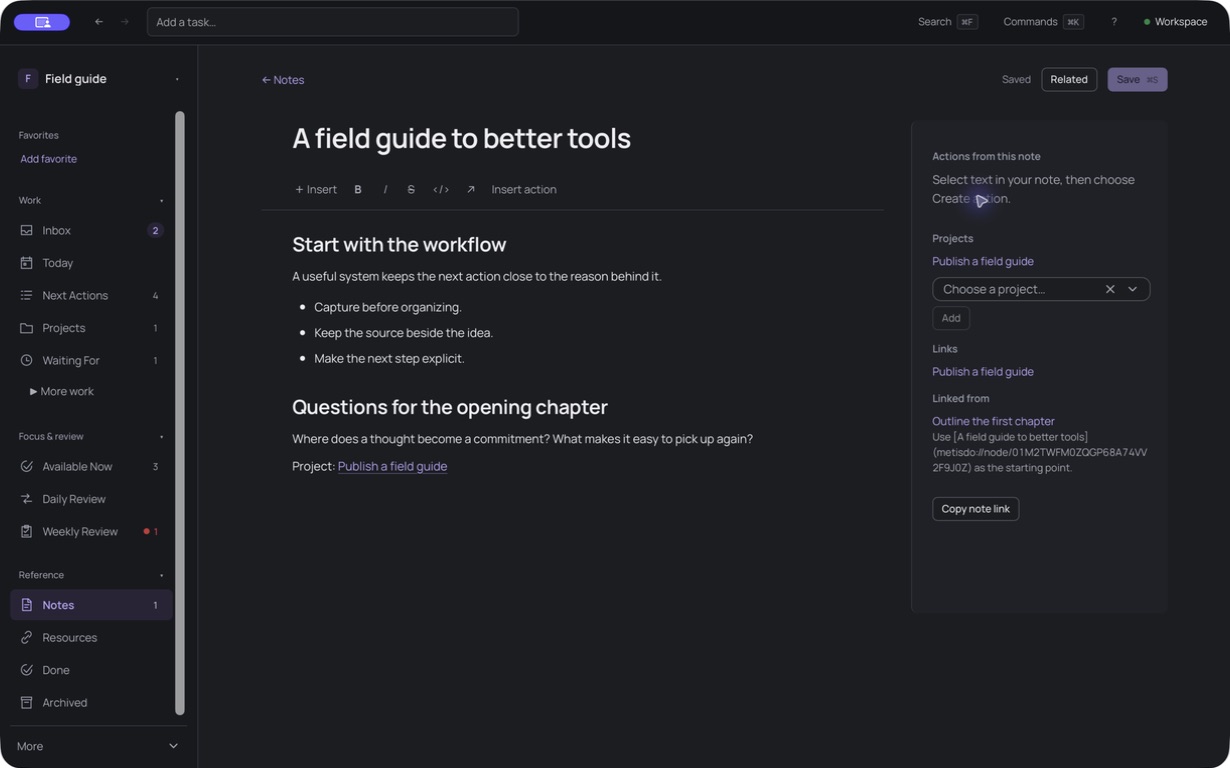
Resources holds files and external links. Use Import files… or Add link, then associate the Resource with relevant work. Text extraction currently covers UTF-8 plain text and Markdown; it is not general PDF or image recognition.
Rich text uses Markdown as its content representation, but a Workspace is not a vault of freely editable Markdown files. Use semantic export when you want portable Notes and current data.
Search & saved views
Press / or ⌘/Ctrl F to search the open Workspace. Search supports prefixes, quoted phrases, and accent folding. Use the arrow keys to select a result and Enter to open it. The index is derived from your Workspace and can be rebuilt from Workspace → Overview.
Use View options on a list to adjust its display, filters, and grouping. Save a customized view to reuse it. Configuration → Saved views contains Available Now filters, inventory views, weekly-review views, and saved searches. Tags provide another way to group related items.
Use Add favorite in the sidebar to keep frequently visited destinations close. Extra inventories are under More work; Workspace tools and Preferences are under More.
Workspace & recovery
Your Workspace is a directory with structured data, configuration, files, and an immutable, verified revision history. The app’s Workspace status identifies read-only, conflict, indexing, and configuration conditions.
- History
- Browse changes, filter by actor, search summaries, and inspect what changed. Supported changes can be undone through the app.
- Recovery & Archived
- Inspect recovery checkpoints and restore one after reviewing its preview. Later history is retained. Archived items can also be restored individually.
- Native snapshot
- Open Workspace → Backup & export → Export snapshot. This includes history, files, and configuration and verifies exported files. Restore into a new folder from the Welcome screen.
- Semantic export
- Export current data as JSON, Notes as Markdown, and Resource files. This omits full history and cannot restore a Workspace.
- Copies & conflicts
- Duplicate a Workspace from its Overview, or move its whole folder. Under Replicas, inspect conflicting histories and choose which to continue. Metisdo retains the other histories and saves a recovery checkpoint first.
- Approvals & background work
- Workspace → Approvals holds changes awaiting review. Background work shows running operations, results, errors, and cancellation controls where available.
Local storage does not mean hosted sync, automatic merging, or end-to-end encrypted collaboration. Those are not claims made by this build.
Import tasks
Open More → Import tasks. Choose a source, select your files, and choose Preview import. Inspect the proposed Actions, Projects, warnings, and source-file status before choosing Review and import….
- Todoist: Project CSV exports. Each file becomes a Project. Completed tasks are not included in Todoist’s exports.
- Obsidian Tasks: Markdown checklist tasks, including supported emoji dates, tags, priorities, and nested tasks. Dataview fields remain in the source text.
- Obsidian TaskNotes: task-note Markdown with YAML properties. You can adjust property names, task detection, frontmatter titles, and status mappings to match your files.
Import is not ongoing synchronization. Reimporting an unchanged file skips existing items. A file that changed since its last import is skipped, leaving previously imported items unchanged; inspect the preview’s explanation.
Configuration & plugins
Configuration controls the Workspace. Preferences controls this device.
Workspace configuration includes capture defaults, context and value vocabulary, review rules, inventory labels and visibility, saved views, and declarative commands. The Sources tab exposes files under .metisdo/config; edit them in the app or a text editor. Diagnostics reports invalid settings while the last valid configuration remains active.
Configuration also exposes Extension Definitions, credential bindings, and configuration import/export. Keep secret values out of shared configuration; a credential binding identifies a device-held credential.
Preferences controls the theme, reopening the last Workspace, recurring-subtask behavior, and the global capture shortcut. The Inspector width and shortcut-hint settings are visible in Preferences, but changing them does not affect the interface in this build. Updates are checked on request through a configured release manifest. About shows version and local configuration/plugin directories.
Lua plugins Desktop
A plugin provides operations, queries, or post-commit hooks through Metisdo’s Catalog. Put its plugin.yaml and init.lua in a directory under the device plugin folder shown in Preferences → About. Open Plugins, review its source digest, and enable it for the Workspace.
Plugins are trusted local code. Review their source and permissions before enabling them. Changed source requires reviewing the new digest.
Connect through MCP Desktop
Open Workspace → MCP and copy the client configuration into your MCP client. The adapter connects to the running desktop app through a local endpoint private to your user account.
metisdo-mcp --workspace /path/to/workspaceKeep Metisdo running with that Workspace open. Clients use the same Operation and Query Catalog as the interface. Mutations require a base revision; destructive and bulk proposals wait for approval inside Metisdo. Review them under Workspace → Approvals.
Your chosen MCP client determines what it sends to an external model or service. A local Workspace does not by itself keep that client’s processing local.
Keyboard reference
Use ⌘ on macOS and Ctrl on Windows/Linux for the platform modifier below. Single-letter shortcuts work outside text fields. Press ? for the in-app guide.
| Keys | Action |
|---|---|
| c | Focus capture |
| / or ⌘/Ctrl F | Search the Workspace |
| ⌘/Ctrl K | Open Command Palette; edit a link when inside a Note |
| n | New Action, or Project in Projects |
| j / k | Move down / up a list |
| Enter | Open the focused item |
| e or ⌘/Ctrl Enter | Complete the focused Action |
| s / w | Start or pause / move to Waiting For |
| x | Toggle bulk selection |
| Shift F10 | Item actions |
| ⌘/Ctrl Backspace | Preview archiving selected items |
| ⌘/Ctrl I | Show or hide the Inspector; italic inside the editor |
| Esc | Close the Inspector or dialog |
| ⌘/Ctrl S | Save the Note or creation form |
| ⌘/Ctrl B | Bold in rich text |
| / in the editor | Insert a block |
For navigation, press g then the second key:
These are navigation shortcuts, not a Vim editing mode. The in-app guide includes additional list, subtask, creation, and editor commands.
Platforms & availability
The desktop app targets macOS, Windows, and Linux. The screenshots here show the current macOS development build. Public installers, availability, and pricing have not been announced.
The browser preview uses a local folder you grant access to in a supported Chromium browser. Its platform capabilities differ from desktop: Lua plugins, MCP, and system-wide capture are desktop-only. It is not a hosted account or a mobile app.